
How to Scan on iPhone and Android, Step by Step
Updated by Khokhar Sab
You can scan a document to PDF with a phone and no extra app: iPhones scan in the Notes app, and Android phones scan in Google Drive. To scan in a browser with no app, Scan to PDF finds the page edges and straightens each page. If you already took photos of the pages, JPG to PDF turns them into one PDF. Phone pictures are large, so we also measured how much a scan shrinks.
How to scan a document on iPhone
Use the Notes app, which comes with every iPhone. Open a note, tap the Attachment button and choose Scan Documents, then hold the phone over the page; in Auto mode it captures by itself. Drag the corners to fit, tap Keep Scan, add more pages and tap Done. Notes saves the scan in the note as a PDF.
- Open Notes and open or start a note.
- Tap the Attachment button (the Camera button on older iOS versions), then Scan Documents.
- Hold the phone over the page; in Auto mode it captures by itself, or tap the shutter or press a volume button.
- Drag the corners to fit the page, tap Keep Scan, and scan the next page.
- Tap Done (Save on older iOS versions). The scan is kept in the note as a PDF.
Scan in the Files app
To save the scan straight to a folder instead of a note, use the Files app.
- Open Files and tap the More button.
- Tap Scan Documents and hold the phone over the page.
- Scan the pages as in Notes: drag the corners to fit, then tap Keep Scan.
- Tap Done, choose a location and tap Save.
Tips for a clean scan
- Auto mode captures by itself once the page is in view. To take the shot yourself, tap the shutter or press a volume button.
- In an open note you can also tap the More button, then Scan, to start a scan.
- To sign the scan in Notes, tap the document, then Markup, the Add button and Signature. For a signature on a PDF you already have, use Sign PDF.
- Apple lists these steps in How to scan documents on your iPhone or iPad, and the iPhone User Guide has a page on scanning in Notes.
When the scan is too large to email, see the size table below, or open Compress PDF.
How do I scan documents on Android?
Use the Google Drive app. Tap the camera button in the lower-right corner and point the phone at the page; a blue outline shows the crop. After the photo you can crop, rotate, switch to grayscale, clean marks, and add more pages. Tap Done, name the file, choose .pdf as the file type, pick a folder and tap Save.
- Open Google Drive and tap the camera button in the lower-right corner.
- Point the phone at the page and take the photo (manual or automatic capture).
- Crop, rotate or clean the page, and add more pages if needed, then tap Done.
- Name the file, choose .pdf, pick a folder and tap Save.
Can I turn photos of pages into a PDF?
Yes. If you already photographed the pages with the camera app, open JPG to PDF in your phone's browser, add the photos in page order, and save one PDF. iPhone photos in HEIC format work in HEIC to PDF. Nothing is uploaded. Crop away the desk around each page first if you can.
Scanner apps crop and flatten the page for you, which plain photos do not, so a scanner app gives a neater result when you have the paper in hand. Photos already taken can go straight into JPG to PDF or HEIC to PDF, and HEIC to JPG turns iPhone photos into JPG pictures for forms that ask for images.
Why is my phone scan so large?
Phone cameras take pictures with millions of pixels, far more detail than a page needs. Our three 12-megapixel test photos averaged 2.6 MB each, and put in a PDF as they were, they made 7.79 MB. Compress PDF at Balanced brought the same PDF to 0.59 MB, and Strong to 0.33 MB, under a 1 MB upload limit.
| 3-page phone scan | PDF size |
|---|---|
| Photos as taken, in a PDF | 7.79 MB |
| Compressed, Balanced (150 dpi) | 0.59 MB |
| Strong, black and white (110 dpi) | 0.33 MB |
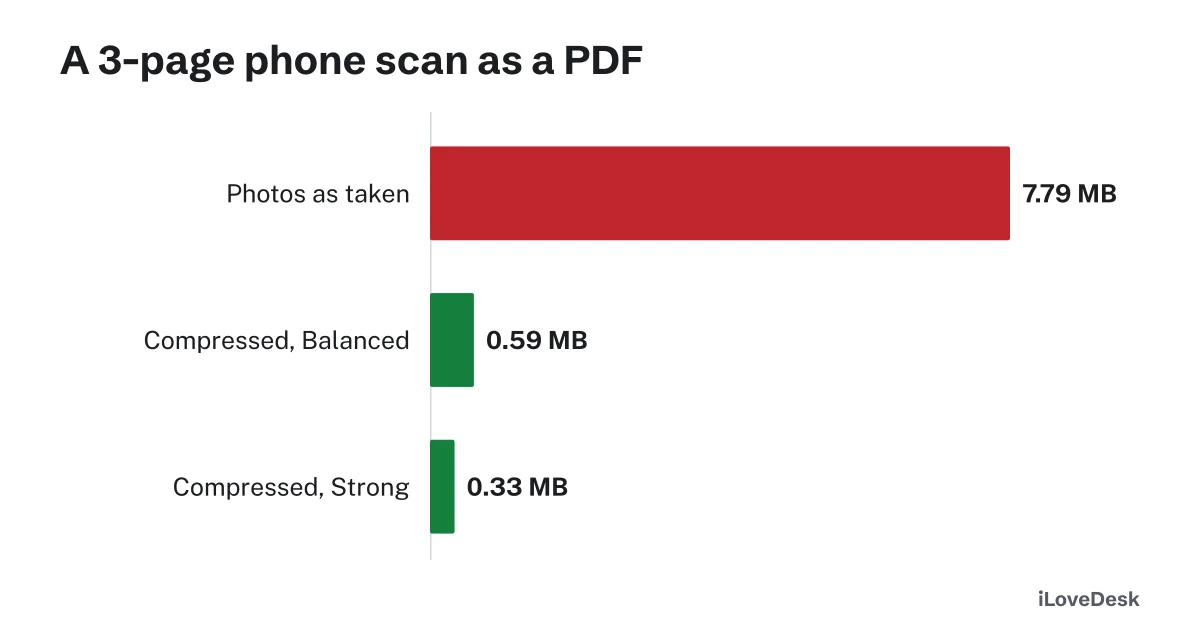
Made 2026-10-12 from three simulated 4032 × 3024 photos of printed pages (src/data/guides/phone-scan.test.ts), compressed with the same code as Compress PDF.
For email, see our guide to email attachment size limits; for what else takes up space, Why Is My PDF So Large?
How do I make a phone scan searchable?
Run it through OCR PDF. A scan is a picture of text, so search and copy find nothing until OCR reads the words and adds them as an invisible layer. Our OCR read 11-point print 100% correctly at 150 dpi, and it straightens pages tilted by up to 7 degrees before reading them.
Do OCR before compressing: it reads the sharper original, and the text layer it adds is tiny.
To get only the words from a photo of a page, without making a PDF, open Image to Text and copy them, or use JPG to Word to get an editable Word document.
Got your pages? Open JPG to PDF on your phone, add the photos, and then shrink the result with Compress PDF.
Tools in this guide
More guides
- How to Make a PDF SearchableOne invoice as text, as a scan and after OCR: how to tell which you have, and how to fix a scan.
- HEIC vs JPGWhy iPhone photos fail to upload or open, tested in Chrome, and how to convert them free.
- Why Is My PDF So Large?What takes up the space in a PDF, measured, and how to fix each cause.
Sources and further reading
- Apple Support: How to scan documents on your iPhone or iPad: scanning in Notes and in the Files app
- iPhone User Guide: Scan text and documents in Notes: the scan is saved in the note as a PDF
- Google Drive Help: Scan documents with Google Drive: scanning in the Drive app on Android